
AlayaCare App
FAQ & Troubleshooting
IMPORTANT NOTE
Before troubleshooting any issues with AlayaCare login for anyone in your franchise, it is best practice to ensure that the individual attempting to access AlayaCare has the most up to date operating system (iOS, Android, etc) and AlayaCare Mobile Application version.
Here are some articles to support with how to update the operating system and application
1. The employee can’t log into the app
Take the following steps before reaching out to helpdesk when your CGs have issues logging into AlayaCare
- Ensure the employee has an Active file in AlayaCare.
- Your employee has a Nurse Next Door Google account and is able to log in.
- Their Nurse Next Door email address is on file and on the correct demographics field > Nurse Next Door Email (SSO will only work with a NND email! (not a personal email)).
-
The server name is correct with no typo:
- If you are in Canada: nursenextdoorcan.alayacare.com
- If you are in US: nursenextdoorusa.alayacare.com
- Ensure employee is logged into their default browser (Chrome, Safari, Samsung Internet)
IMPORTANT NOTE
If the employee is using a Samsung device, have them log into Google via the "Samsung Internet Application"
2. The SSO login option is not showing
- If there is a typo, the ‘log in with SSO’ option will not appear on the login page.
- If the employee’s phone has picked up an open wifi network without being fully connected to it. (e.g. Starbucks, Mcdonald wifi networks).
- The server name is correct but my employee is still not able to log in.
Please check the following:
- Ensure there is no typo in their name and email address.
- Ensure your employees are not trying to use the ‘Login with AlayaCare’ option
- If the verification of the above steps have not fixed the issue, please email helpdesk@nursenextdoor.com and provide the following:
- Name of your employee.
- A Screenshot of the error message.
- Operating System (Android, IOS, Blackberry)
3. The employee can’t clock in for a visit
The reason is:
- The employee has not clocked out from your previous visit.
The employee will not be able to clock-in for a visit unless they have clocked-out from a previous visit. Ask your employee to check by navigating to: Burger menu -> Open Activities -> Clock Out (of previous visit).
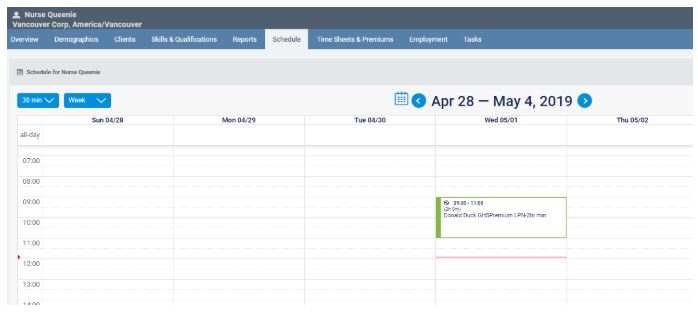
*On the website, to check if an employee is still clocked in from a past visit, open the employee schedule and you will see a visit in green (clocked in visit) If you have not yet approved the visit.
Another way to see it is through visit approval by filtering all visits for that employee and find the last visit before the CG was no longer able to clock in.
 4. The employee clocked in for a visit but an investigation was still conducted.
Possible reasons:
- Your employee clocked outside of the acceptable punch in distance (700m)
- The employee clocked in through the p instead of the schedule tab meaning it’s not visible to Care Services when monitoring AMS.
- If the employee was at the Client’s house but the punch in distance recorded is greater than 700m or not displayed at all, refer to point #7.
5. I can see that my employee has clocked in on the activity feed in AlayaCare but an investigation was still conducted, why?
Your employee clocked in through the caseload tab which is incorrect.
It means your employee is clocking in for a visit that is ‘unscheduled’. You can confirm that’s the case by going into Workforce Management > Unscheduled Visits.
> Follow up with your Caregiver to ensure they are clocking in correctly! (Through the schedule tab).
6. The employee can’t clock out from the visit
- Daily tasks are still outstanding and need to be completed.
7. The employee can’t see/complete the daily activities
- Your employee has accessed the Client information through the caseload instead of the schedule tab. Daily activities are linked to the visits. If trying to access the daily activities through the caseload, the service task tab will be empty!
*Remind your employees to access the daily activities through the ‘schedule’ tab and selecting the relevant visit.
8. My employee is at the client’s house when signing in but still receives a ‘Proximity warning’ message.
Possible Reasons:
- Has the employee turned on the location for the AlayaCare App. (If there is a punch in distance recorded, disregard this point).
Go to the phone’s ‘Setting’> find the ‘AlayaCare’ app > Make sure the ‘Location’ is set up ‘While Using’
- Address is filled out correctly (Suite # or unit # must be on line 2, not line 1).
- Location of the CLT (e.g. remote location with poor cell location).
- Location of the cell tower/Employee’s service provider (smaller phone companies may not have extensive cell phone coverage with cell tower far apart).